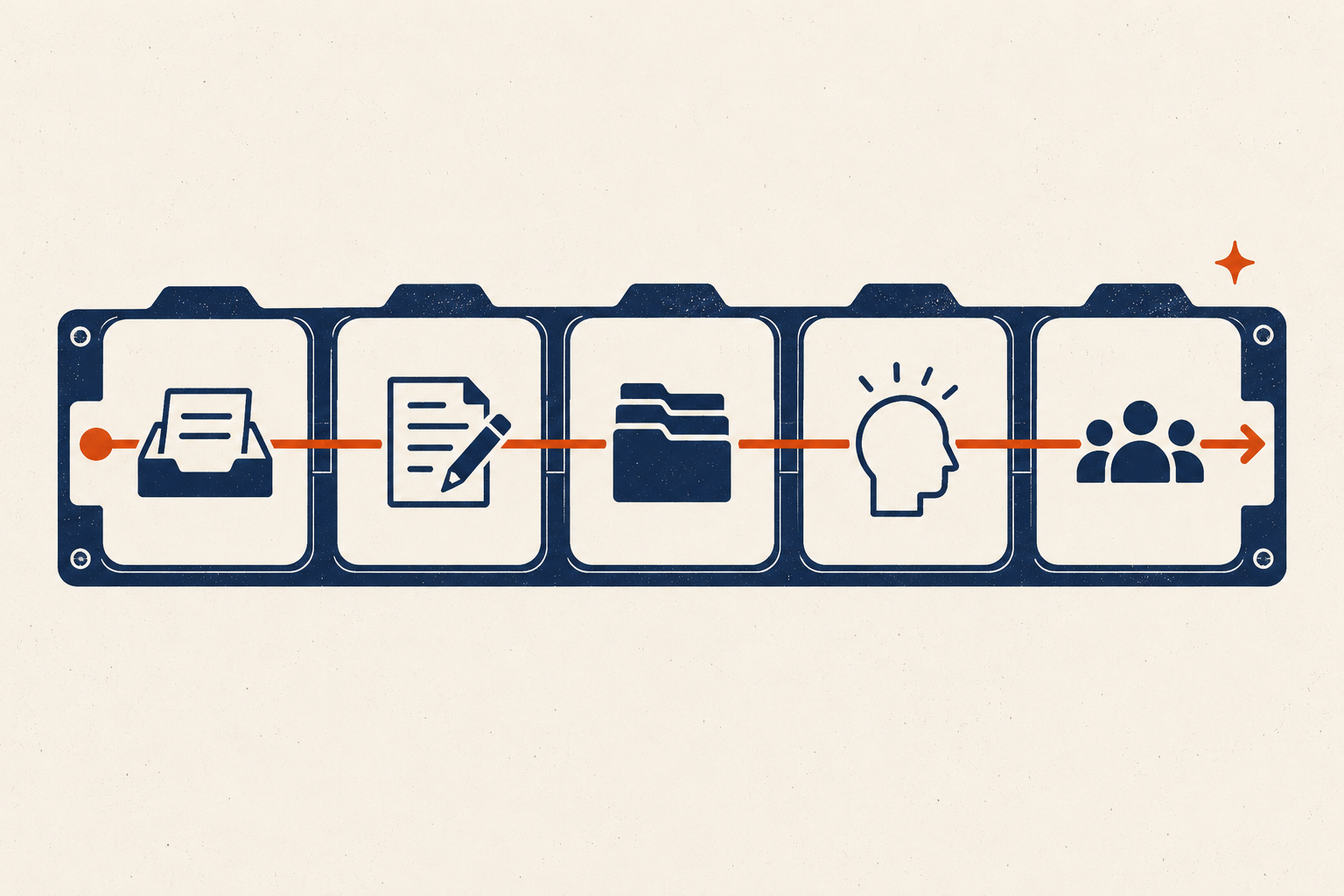
Getting Things Done (GTD) is a workflow for turning things that have your attention into decisions you can trust. It does not require a particular app, a perfect filing system, or a weekend spent labeling every part of your life.
The official method has five stages: capture, clarify, organize, reflect, and engage. A beginner setup needs all five, but each can be small. The real test is whether the setup survives its first weekly review.
System plate 01 — The minimum
Use one inbox, one calendar, a projects list, a next-actions list, a waiting-for list, and a reference home. Add complexity only when a repeated failure calls for it.
What GTD solves—and what it does not
GTD helps when commitments arrive faster than you can decide what they mean. It provides a processing path:
- Get the input into a trusted inbox.
- Decide whether it is actionable.
- Define the outcome and next action when needed.
- Put the result where it will reappear appropriately.
- Review the system often enough to keep it current.
External systems can support delayed intentions. A review of intention offloading research describes how calendars, diaries, objects, and digital reminders can cue future actions. That evidence supports using external reminders deliberately. It does not prove that GTD is the one best method or that writing something down automatically makes it happen.
GTD also does not decide your values, create capacity, resolve an unreasonable workload, or guarantee focus. It can show you the commitments you have accepted. You still need to renegotiate, decline, schedule, or act.
The five stages in plain language
The official GTD overview names the stages Capture, Clarify, Organize, Reflect, and Engage. These terms are part of the GTD methodology; the explanations below are a practical minimum implementation.
1. Capture: hold the input safely
Capture anything that has your attention and might require a decision: a request, idea, receipt, task, promise, or concern. Use one main digital inbox and, if paper enters your life, one physical tray.
Capture enough context to recognize the item later. “Email” is not useful. “Reply to Lee about the revised delivery date” is.
Capture is temporary. If an inbox never gets clarified, it becomes storage with no decision rule.
2. Clarify: decide what the item means
Take one item at a time. Ask:
- Is it actionable?
- If not, should it be deleted, kept as reference, or placed on a someday/maybe list?
- If it is actionable, what outcome would count as done?
- What is the next visible, physical action?
“Plan birthday party” is a project because it requires more than one action. “Text Sam to confirm the guest count” is a next action.
3. Organize: place the decision where it belongs
The minimum containers are:
- Calendar: actions and information tied to a real date or time.
- Projects: outcomes requiring more than one action.
- Next actions: visible actions you can do when the context fits.
- Waiting for: delegated items or responses you are expecting.
- Reference: information with no current action.
- Someday/maybe: possibilities you are not committing to now.
Do not use the calendar as a hopeful list of tasks you might do. When its entries routinely move, the calendar stops functioning as a reliable picture of date-specific commitments.
4. Reflect: bring the lists back to reality
Reflection includes quick checks during the week and a fuller review. The official GTD Weekly Review checklist groups work into getting clear, getting current, and getting creative.
The purpose is not inbox-zero theater. It is to make sure each active project has a current next action, waiting items have follow-up points, and the calendar and lists match present reality.
5. Engage: choose and do
Engage means using the system to choose an action. Context, available time, capacity, and priority all matter. Your lists should narrow the choice; they should not demand that you complete every available action.
Build the minimum setup
Use tools you already understand. Paper, a basic task app, a notes app, or a combination can work. Assign each container one job.
| Container | Holds | Does not hold |
|---|---|---|
| Inbox | Undecided inputs | A permanent task backlog |
| Calendar | Date- and time-specific commitments | Work you merely hope to do someday |
| Projects | Outcomes needing multiple actions | Every life area and ambition |
| Next actions | Concrete, available steps | Vague project names |
| Waiting for | Responses and delegated outcomes | Tasks you still own |
| Reference | Non-actionable information worth retrieving | Hidden tasks |
If you already use several capture channels—email, chat, paper, voicemail—do not force them into one tool in real time. Choose one processing routine that visits each source and sends decisions to the same core lists.
Clarify five real examples
“Insurance renewal”
- Actionable? Yes.
- Project outcome: Renew coverage before the current policy expires.
- Next action: Find the renewal notice and note the response deadline.
- Calendar: Deadline only, plus a review reminder if useful.
- Reference: Current policy PDF.
“Maya sent the workshop notes”
- Actionable? Maybe.
- If the notes support an active project, file them with that project and add a next action only if one exists.
- If they have no foreseeable use, archive or delete them. Do not create a task merely because information arrived.
“Book dentist appointment”
- Actionable? Yes.
- Next action: Call the clinic at its opening time, or use its booking page.
- Calendar: The appointment goes on the calendar only after it is booked. A reminder to call may go there if it must happen at a specific time.
“Fix the website”
- Actionable? Not yet clear.
- Desired outcome: Contact form successfully submits a test message.
- Next action: Reproduce the failed submission and save the error text.
“Ask Jordan”
- Actionable? Too vague.
- Rewrite it with subject and channel: “Message Jordan to confirm who owns the October report.”
These distinctions are the working core of GTD. A sophisticated app cannot compensate for vague inputs.
Run the first weekly review
Schedule 30 to 60 minutes for the first review. The official checklist is longer and should remain the authoritative reference; this beginner pass focuses on restoring trust.
- Gather loose inputs. Put paper, notes, and uncaptured commitments into the inbox.
- Clarify the inbox. Decide each item; do not merely sort it into folders.
- Review the recent calendar. Capture follow-ups from events that have already happened.
- Review the upcoming calendar. Identify preparation and constraints.
- Review waiting-for items. Mark received responses and choose follow-ups.
- Review every active project. Confirm its outcome and one current next action.
- Review next actions. Remove completed, obsolete, or duplicate entries.
- Review someday/maybe briefly. Activate, retain, or delete without turning the review into a planning retreat.
Stop when the operational surface is current. You can improve categories later.
Common failure modes and repairs
Over-capture
Symptom: The inbox contains every interesting article, quotation, and possibility.
Repair: Capture commitments and decision-worthy inputs. Send reading material to a separate reference queue with a deletion rule.
Vague projects
Symptom: “Kitchen,” “career,” or “website” appears on the projects list.
Repair: Write an observable outcome: “Replace the leaking kitchen tap,” or “Portfolio page is ready for review.” Then add one next action.
Stale lists
Symptom: You stop checking the system because it contains tasks you no longer intend to do.
Repair: Run a recovery review. Delete completed and obsolete entries first, protect near-term commitments, then review only active projects. You do not have to process the backlog chronologically.
Tool switching
Symptom: Setup work repeatedly replaces actual clarification and review.
Repair: Freeze tools for two review cycles. Record friction, but do not migrate unless the current tool prevents an essential function.
The weekly review becomes too large
Symptom: You avoid review because it takes hours.
Repair: Separate restoration from improvement. First make the calendar, waiting list, and active projects current. File archives and redesign labels later—or not at all.
A recovery procedure when GTD has gone stale
When you have not reviewed the system for weeks, do not begin by clearing every inbox.
- Check the next seven days of the calendar.
- Identify commitments with consequences for other people.
- Send necessary renegotiation messages.
- Choose one inbox for new inputs.
- List currently active projects only.
- Give each active project one next action.
- Schedule a second, bounded review for older material.
This recovery path protects trust without demanding a dramatic reset. Once the system is usable, compare it with time blocking if actions need calendar space, or a second-brain workflow if the problem is reference retrieval. The digital-versus-paper comparison can help choose a format without changing the workflow. If the review itself needs a stable cue, use the bounded approach in the habit-formation guide. For a paper implementation, see the minimal Bullet Journal guide. For method selection more broadly, use the productivity-systems comparison.
Sources and method boundaries
- Getting Things Done: What is GTD? — official five-stage terminology.
- GTD Weekly Review checklist — official review sequence.
- Gilbert et al., Outsourcing Memory to External Tools — independent review of intention offloading and reminder use.
GTD and GTD Weekly Review are trademarks of the David Allen Company. This independent educational guide is not affiliated with or endorsed by that company.